
Following these instructions will help make sure you computer is running as fast as possible while plugged into power. Specifically, this will help with "slowness," "lagging," and “glitching” while you are attending virtual classes or teaching.
- Make sure you are plugged into power (this can be via a dock or a regular charger)
- Click on the battery icon in the bottom right (near the clock)
- If you do not see the icon, click on the arrow (circled in green below)
- Drag the Power mode (plugged in) slider to Best performance
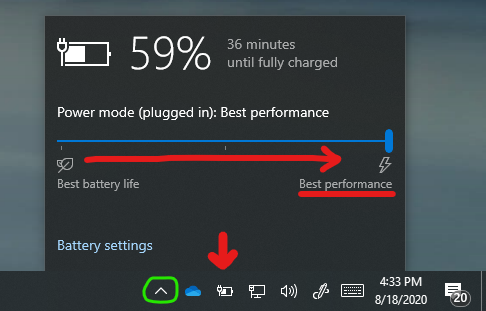
Notes:
We recommend leaving your computer plugged into power while you are attending virtual classes or teaching them.
If you need to be on battery power, we recommend leaving the slider on Recommended to get the best performance while conserving battery. (This is the default mode for battery power so no action is needed on your end.)
If you are curious what the different slider modes do, here is a table explaining the differences:
| Slider mode | Description |
|---|---|
| Battery saver | Helps conserve power and prolong battery life when the system is disconnected from a power source. When battery saver is on, some Windows features are disabled, throttled, or behave differently. Screen brightness is also reduced. Battery saver is only available when using battery power. We only recommend using battery saver when your battery is low and you are not close to a power source. |
| Recommended | Delivers longer battery life, functioning as the default slider mode while on battery |
| Better Performance | Slightly favors performance over battery life |
| Best Performance | Favors performance over power for workloads requiring maximum performance and responsiveness, regardless of battery power consumption |
Comments
0 comments
Article is closed for comments.