
Starting January 13th, 2021, Mozilla Firefox will be removed from all of Wesleyan's devices. If your primary browser is Mozilla Firefox, please follow these instructions to choose a new default browser.
- Step 1 - Choose a browser to use
- Step 2 - Set your new preferred browser as default
- Step 3 - (Optional) Import old Firefox data into your new preferred browser
Step 1 - Choose a browser to use
/cdn.vox-cdn.com/uploads/chorus_asset/file/19341372/microsoftedgenewlogo.jpg)

You may pick between Microsoft Edge and Google Chrome. These two browsers are very similar to each other. Both can be found in your start menu.
For Wesleyan, these are the biggest differences:
- If you choose to use Microsoft Edge, the browser login experience will be seamless and all of your browser data will be synced to the cloud automatically.
- If you choose to use Google Chrome, you will be prompted to enter an email address and password to sign into the browser.
- Please use your @wesleyanschool.org email address to sign into Chrome. This will ensure your browser data is synced to the cloud.
Step 2 - Set your new preferred browser as default
-
Select the Start button, and then type Default apps.
-
In the search results, select Default apps.

-
Under Web browser, select the browser currently listed, and then select your preferred browser.
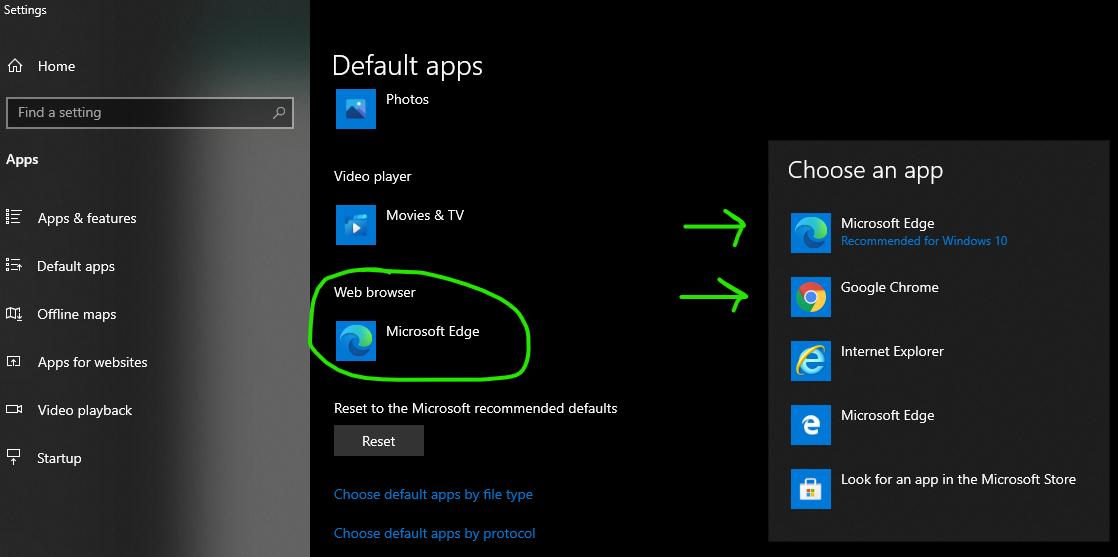
- Moving forward, whenever you click on a link in an email, or a shortcut on your desktop, your preferred browser will open it.
Step 3 - (Optional) Import old Firefox data into your new preferred browser
If you have history, favorites, bookmarks, and/or saved passwords you would like to continue using please follow these instructions to import them into your preferred browser.
Microsoft Edge
- Open Edge and click on the menu (...) in the top right
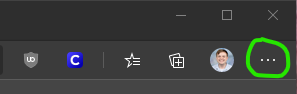
- Select Settings

- Under Your profile, select Import browser data

- Under the Import from drop-down, select Firefox
- Make sure everything you would like to import is checked and then select Import
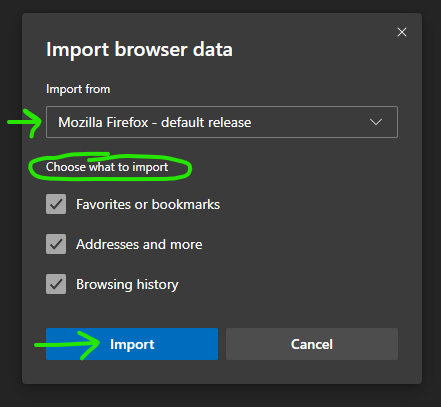
- After that process is completed, all of the data you chose to import from Firefox should now be available in Edge
Google Chrome
- Open Chrome and select the menu in the top right
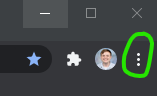
- Select Bookmarks
- Select Import bookmarks and settings...
- Make sure to choose Firefox
- Make sure everything you would like to import is checked

- Select Import
- After that process is completed, all of the data you chose to import from Firefox should now be available in Chrome
Comments
0 comments
Article is closed for comments.