
Follow the instructions below to orient your SMART interactive display:
- Press the SMART Board icon (
 ) in the notification area, and then select Orient.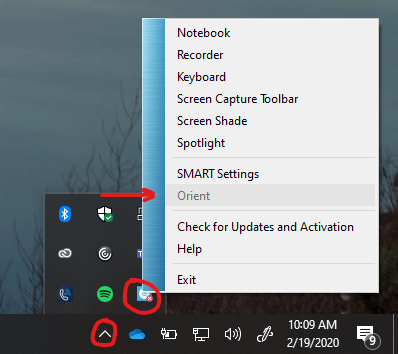
- You may have to expand your system tray by pressing on the '^' near the clock.
- Once targets appear, press the center of each target in the order indicated. The computer registers the point on the SMART interactive product where you remove your finger or pen from the screen.
- Notes
- If the calibration screen doesn’t appear on your interactive display, move it to the selected interactive display by pressing the SPACEBAR on the keyboard.
- To effectively orient the SMART interactive product, press an area near each target, and then slide your finger or pen to the center of each target’s cross-hairs before removing it. Keep your finger or pen at a right angle to the SMART interactive product’s surface.
- Notes
Comments
0 comments
Article is closed for comments.