- Navigate to the following link: https://wesleyanschool.myschoolapp.com
- Login with your current Blackbaud credentials.
- Instructions to login for staff and students here.
- Once logged into your Blackbaud account, navigate to the group you would like to pull an email list from.
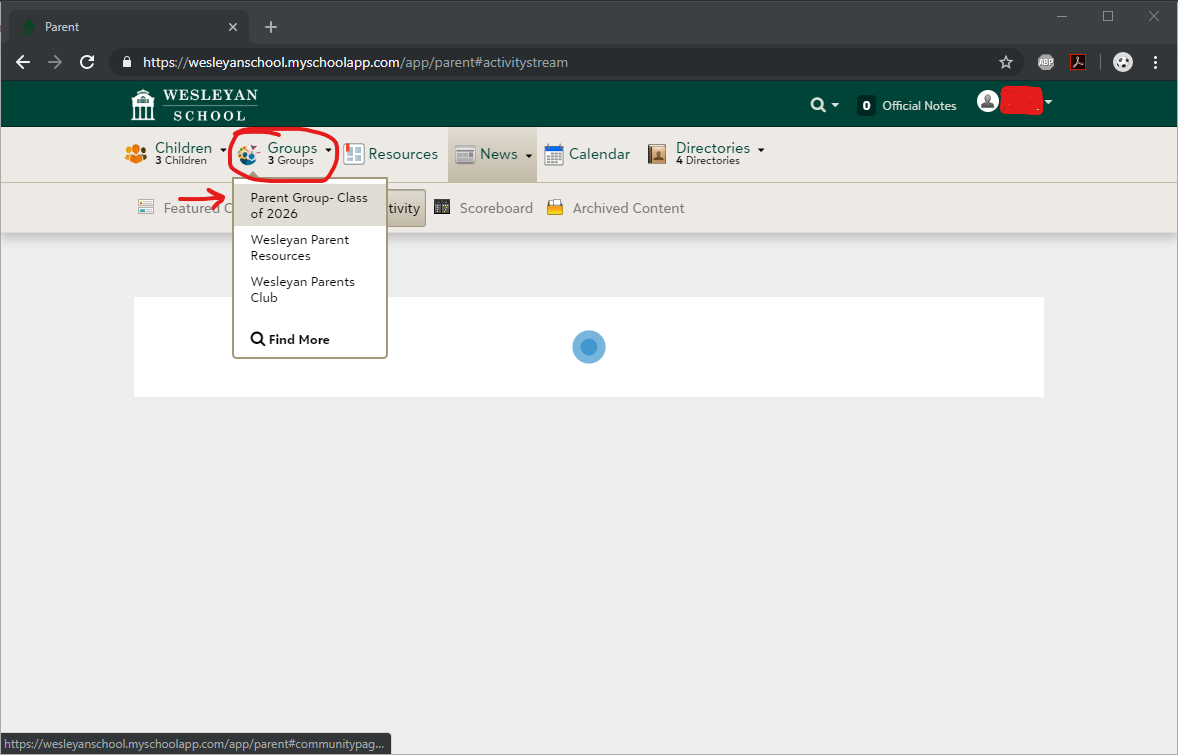
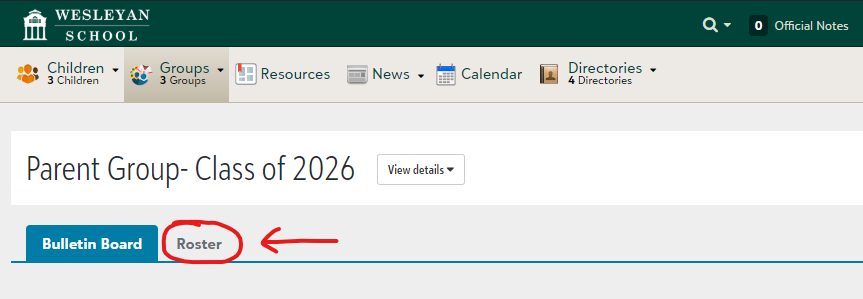
- Once in the group, click on the Roster tab.
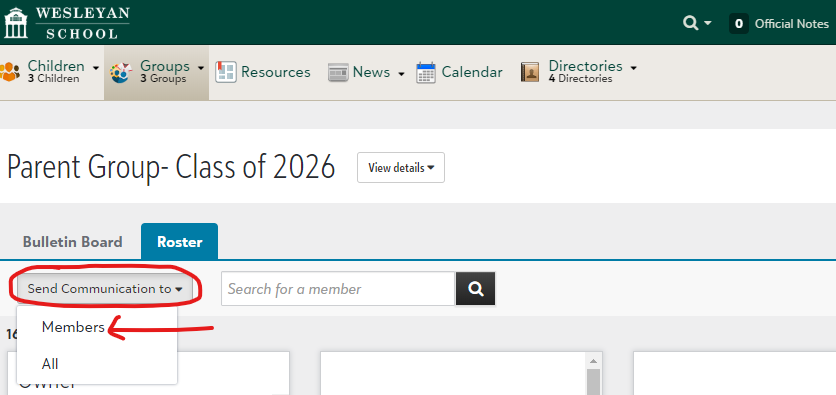
- Once in the roster screen, click Send Communication to and then select Members.
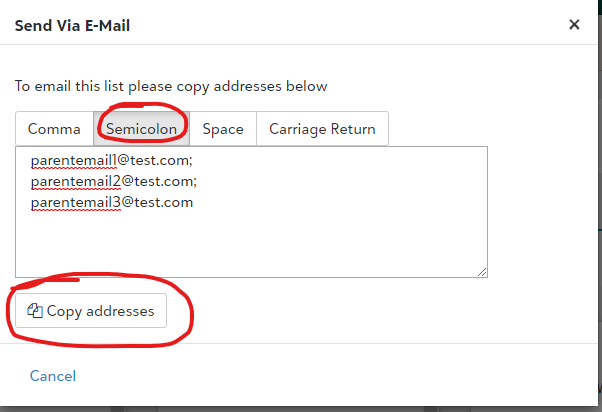
- A new window will pop-up. Make sure to select the Semicolon tab. Once you see email addresses listed, press the Copy addresses button at the bottom of the window. This will copy the email list to your clipboard.
- Paste your list into your mail application's To: field or BCC: field. We recommend using the BCC field so that recipients who reply-all don't flood everyone else's inboxes.
Pulling an Email List from a Blackbaud Group

Comments
0 comments
Article is closed for comments.