
If you would like to remove a synced Team/SharePoint folder from your OneDrive, follow these instructions:
Please note: If you delete a shared Team/SharePoint folder from your computer without first following these instructions, you could cause data loss in your team's shared folder.
- Ensure the OneDrive sync client is running by opening OneDrive from the Start Menu.

- Once running, click on the OneDrive icon in the system tray (near the clock in the bottom right).

- Open Settings.
- Click on the Account tab.
- Locate the folder you no longer wish to sync and click on Stop sync.

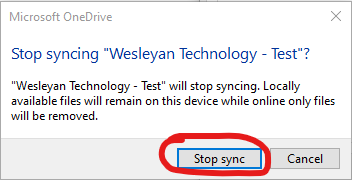
- A confirmation dialog will popup. Confirm that you would like to stop syncing the folder by clicking on Stop sync.
- If you would like to remove the folder to free up storage space, navigate to C:\Users\<your username>\Wesleyan School\ in File Explorer.
- Once there, find the folder you would like to remove and delete it.

Comments
0 comments
Article is closed for comments.