
If you cannot print on your macOS device, it is likely because your password was recently changed. Follow these instructions to resolve the issue:
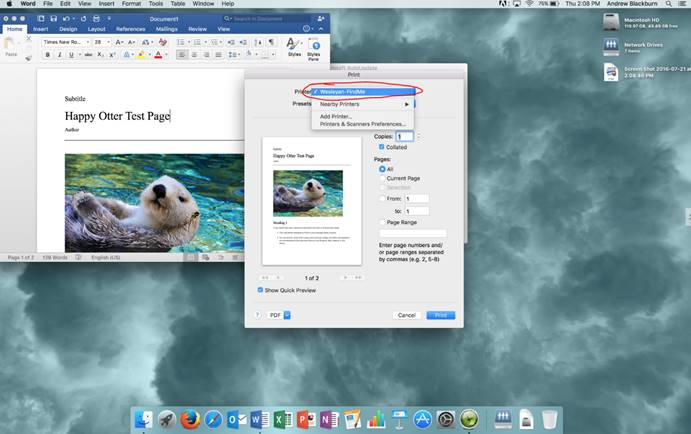
- When printing, make sure you choose your default printer (in most cases this will be Wesleyan-FindMe).
- The print queue icon will bounce in the dock at the bottom of the screen. Click on the icon.

- The print queue window will open up. It will say something along the lines of “Hold for authentication”. Please press the small circle to the right of the job.

- A new window will popup asking for your name and password. Enter the same username and password you use to login to your computer. Make sure to check “Remember this password in my keychain”.

- Press OK. If you typed everything correctly, the job should now be queued up on the server and awaiting release anywhere on campus.
Comments
0 comments
Article is closed for comments.