
Password Requirements:
Please keep these requirements in mind while creating your new password.
- You may not use your username or any part of your name in your password.
- For example, the name "John Smith" is split into two checks: "John” and “Smith”. Therefore, this user could not have a password that included either "john" or "smith" anywhere in the password.
- Your password must be at least 8 characters.
- Your password must contain at least THREE of the following four categories:
- Uppercase letters: A through Z
- Lowercase letters: a through z
- Numbers: 0 through 9
- Special characters: ~!@#$%^&*_-+=`|\(){}[]:;"'<>,.?/
- You must change your password every 60 days.
- Anytime you change your password, you will not be able to use an old password. Each password change will require you to use a new password.
Please click on your system type below for applicable instructions:
- Windows
- macOS
- Online via the Office Portal (Use these instructions if you would like to reset your password on your phone or personal computer.)
Windows:
- To change your password before it expires, press CTRL+ALT+DEL and select "Change a password".
- If your password has already expired, you will see a screen similar to the one below when logging in. Press okay to proceed with changing your password.
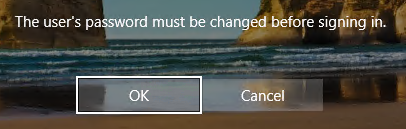
- If your password has already expired, you will see a screen similar to the one below when logging in. Press okay to proceed with changing your password.
- Your username should automatically be filled in. Enter your old password and new password in the boxes and then click the arrow to finish.
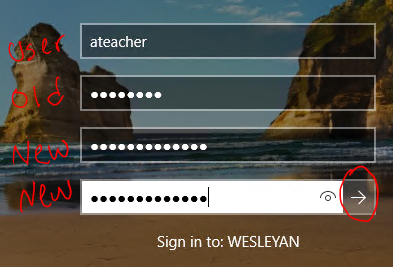
- After changing your password, you will be prompted to login to services like OneDrive, Outlook, etc. Please use your NEW password when signing in.
Mac:
- To change your password before it expires, open "System Preferences", click on "Users & Groups", and select "Change Password..." in the upper right hand corner.
- If your password has already expired, you will see a screen similar to the one below when logging in. Proceed with the following instructions to change your password.
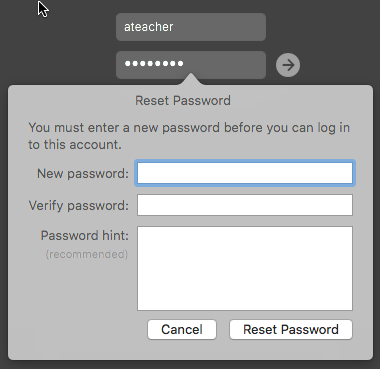
- If your password has already expired, you will see a screen similar to the one below when logging in. Proceed with the following instructions to change your password.
- If asked for your old password, please enter it. Enter your new password in the boxes and then click on ‘Reset Password’ to login. You do not need to enter a password hint.
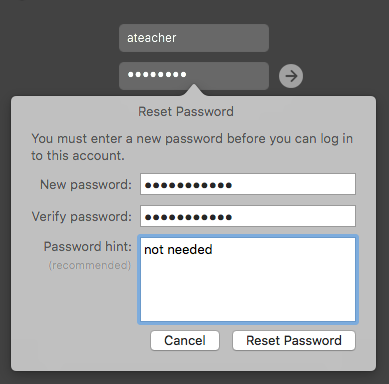
- If you are prompted with a keychain window, please press “Update Keychain Password”
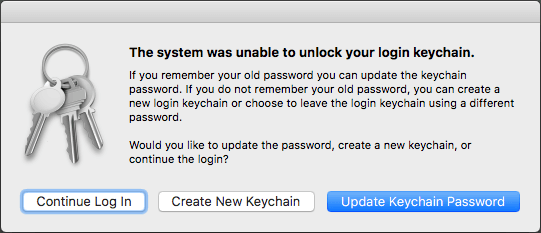
- When you are prompted for a password, enter your OLD password… Your old password is needed to update your stored passwords to your new password.
- If you are prompted with a keychain window, please press “Update Keychain Password”
- After changing your password, you will be prompted to login to services like OneDrive, Outlook, etc. Please use your NEW password when signing in.
Online:
- To change your password before it expires, please click here to change your password:
- If your password has already expired, you will see a screen similar to the one below when logging in to the Office portal (https://portal.office.com). Proceed with the following instructions to change your password.

- After pressing sign-in you should see a 'Update your password" screen. Make sure you enter your current password in the first box and the new password in the second and third boxes.

- Click "Sign in" to get logged in.
- If your password has already expired, you will see a screen similar to the one below when logging in to the Office portal (https://portal.office.com). Proceed with the following instructions to change your password.
- After you change your password any devices you may have configured with your Wesleyan email, like your phone, will prompt you to enter your NEW password. The next time you plan to use your school issued laptop, please restart and then login with the NEW password.
Comments
0 comments
Article is closed for comments.